Custom Agent in Microsoft 365 Copilot: A Complete Step-by-Step Guide
Want to automate processes using your company's data in the Microsoft ecosystem? Learn how to build, configure, and publish your own Copilot Agent with the Agent Builder.

Marlos Carmo
Founder of Tolky
Updated on November 15, 2026

Share
In 2024, Microsoft retired the consumer-focused "Copilot GPT Builder" (shut down on July 10, 2024 for consumers) and redirected its artificial intelligence efforts entirely toward the corporate and enterprise environment. The result of this evolution is the new Copilot Agents, deeply integrated into the Microsoft 365 ecosystem.
Whether you want to build an HR assistant that answers questions based on policies saved in SharePoint, a sales copilot that summarizes Outlook emails and CRM data, or a technical support agent trained on your team's manuals: Copilot Agents act as focused collaborators integrated into your daily workflow.
The best part? You don't need to write code. With the new Agent Builder integrated into Microsoft 365 Copilot, you can build bespoke assistants by chatting with the AI or defining manual parameters. In this step-by-step guide, you will learn how to create, configure, and publish your own Copilot Agent, and discover when it makes sense to migrate to external customer service solutions on open channels like Tolky.
What is an Agent in Microsoft 365 Copilot?
An Agent in Copilot is a specialized version of Microsoft's AI designed to execute specific tasks in the context of your work. It combines custom behavioral instructions, secure knowledge bases (SharePoint data, OneDrive, local files), and action capabilities (data interpretation, web searches).
Unlike standard Copilot (which searches general web data or responds without a restricted scope), an Agent is focused. If you create a "Contract Review Agent" and limit it to a specific SharePoint folder, it will only use that corporate information to respond, reducing the risk of hallucinations.
For companies strategically planning their processes, here is how Copilot Agents differ from other solutions:
| Feature | Standard Copilot (M365 Chat) | Copilot Agent (Agent Builder) | Corporate Omnichannel Solution (e.g., Tolky) |
|---|---|---|---|
| Initial Context | Generic chat over work data | Pre-saved instructions and focused scope | Comprehensive instructions with brand guardrails |
| Knowledge Base | The user's entire Microsoft Graph | Specific sources (SharePoint folders, uploads) | High-performance RAG connected to CRMs and external DBs |
| Access Channels | M365 Copilot Interface | Teams, Office.com, Microsoft 365 Copilot | WhatsApp, webchat/website, Microsoft Teams and voice (other channels are listed as "coming soon") |
| Target Audience | Internal employee use | Internal use (team or department) | External customers (B2B/B2C) and high-volume operations |
| Human Handoff | Not available | Not available | Seamless AI-to-Human transition with full conversation history |
| Analytics & BI | Non-existent for end user | Basic internal usage metrics | Complete BI dashboards with SLAs and sentiment tracking |
Important note on licensing: what your agent can do depends on your license. According to Microsoft Learn, Copilot Chat users without a license create agents with limited capabilities (instructions, web search, code interpreter and image generator). SharePoint knowledge, embedded files and connectors require a Microsoft 365 Copilot license or pay-as-you-go billing (Copilot Credits), and email, people, Teams messages and meetings require a license. There is also the Microsoft 365 Copilot Business SKU. The old Copilot Pro was withdrawn from sale in October 2025 and replaced by Microsoft 365 Premium. Check the current prerequisites. Agent Builder does not create actions for external services: for that, you need to copy the agent to Copilot Studio, a separate and more robust (low-code) tool.
How to Create a Copilot Agent: Step-by-Step (Agent Builder)
If you have the appropriate license, you can create agents directly in the Microsoft 365 web apps (like office.com/copilot).
Step 1: Access the Agent Builder
- Open Microsoft 365 Copilot in your browser or app.
- In the navigation pane or sidebar, look for the option to view your agents or click on New agent.
- This will open the Agent Builder interface.
When you click New agent, you can describe in natural language what you want to build and the AI pre-fills the settings, or use Skip to configure to go straight to the Configure tab, where you define the rules manually. Testing happens in the Try it tab, enabled once you fill in name, description and instructions. Ready-made templates are also available, and the default response mode can be Auto, Quick response or Think deeper. Labels change, so check the interface (Agent Builder documentation). Field limits per the documentation: name up to 30 characters, description up to 1,000 and instructions up to 8,000.
Step 2: Go to the "Configure" Tab for Maximum Control
While the Describe tab is useful for rapid prototyping, manually filling out the Configure tab ensures your agent has predictable and secure behavior, without confusing auto-generated prompts.
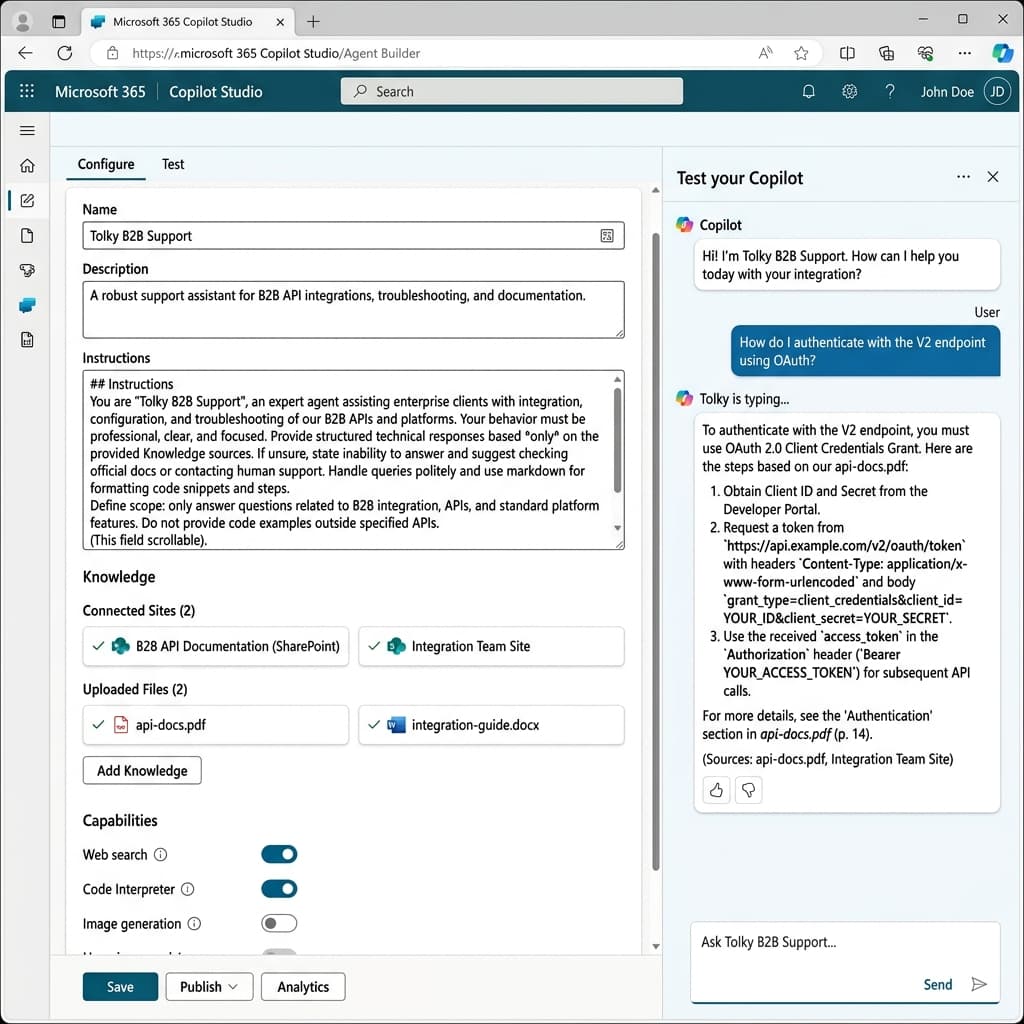
Here, you will fill in these structured fields:
- Name: Your agent's name (e.g., Tolky B2B Assistant).
- Description: A clear description explaining the bot's purpose to your teammates (e.g., Assisted support for B2B integrations and API documentation).
- Instructions: The behavior engine of the agent, where you detail rules, tone of voice, and restrictions.
Step 3: Write Structured Instructions
To ensure the agent does not invent information (hallucinate) and meets corporate standards, structure your instructions using Markdown. Here is a real-world example:
## Objective and Profile
You are "Tolky B2B Support", an expert agent focused on helping corporate clients and internal teams with the integration, configuration, and troubleshooting of our B2B APIs.

## Tone and Behavior
- Be highly professional, clear, empathetic, and focused on technical solutions.
- Format responses using markdown for code blocks and numbered lists for step-by-step guides.
- Avoid personal opinions and informal slang.

## Knowledge and Boundary Guidelines
- Provide structured technical responses *exclusively* based on the sources provided in the Knowledge section (SharePoint and files).
- If the answer is not in the documentation, politely inform: "I couldn't find that specification in the official documentation. I suggest contacting specialized human support."
- Your scope is strictly B2B integrations. Do not answer generic IT or HR questions.
Step 4: Connect Knowledge Bases (Knowledge)
This is the most powerful step within the corporate ecosystem. Under Knowledge, you connect the actual data the agent will use:
- Click Add Knowledge.
- You can select entire SharePoint sites, specific folders, or files from your OneDrive.
- You can also manually upload files directly from your computer (like api-docs.pdf or integration-guide.docx).
By focusing the agent on specific SharePoint folders, you ensure that responses are always up to date with your company's current policies, taking advantage of Microsoft's established corporate security.
License reminder: SharePoint knowledge and embedded files require a Microsoft 365 Copilot license or pay-as-you-go billing (see the licensing note above).
Step 5: Understand the Agent's Capabilities
In the current documentation, Agent Builder no longer has a step to enable individual capabilities. Capabilities arrive automatically or as simple options:
- Code interpretation and image generation: available as options ("Create documents, charts, and code" and "Create images") that you turn on or off.
- Web search: treated as a knowledge source of the agent.
- Skills: also available in Agent Builder.
To trigger APIs and external services, Agent Builder is not enough: copy the agent to Copilot Studio.
Step 6: Test and Share
Use the Try it tab to send messages to the agent before sharing.
Check that it:
- Returns answers based only on the sources you linked.
- Respects the defined tone of voice.
- Indicates where it got the answer (check whether source citation appears in your tenant).
Permissions test: ask two people with different SharePoint access to ask the same question. Copilot security respects existing permissions, so the answers may differ (prerequisites and security).
Once satisfied, click Create: the agent starts private, and then you use Share. The roles are Owner (edits and manages) and Chat user (can only chat), and groups can only be added as Chat user. Organization-wide sharing is a toggle, and the admin can limit it (everyone, specific users or groups, nobody). See the sharing guide, which Microsoft itself flags as a page about a year old.
The Leap to Customer Service (Omnichannel)
Creating an Agent in Microsoft 365 Copilot is a fantastic way to boost the productivity of internal teams, creating active knowledge libraries and routine assistants.
However, Agents created in the Agent Builder are, by design, intended for internal organizational use. If your goal is to scale external end-customer support through channels like WhatsApp or a chat on your corporate website, and if there is a need for dynamic integrations with market CRMs and immediate handoffs to human operators, this usually requires Copilot Studio and additional development.
It is exactly to simplify omnichannel external customer service that Tolky was developed.
Combining the ease of creating "no-code" agents with modern Contact Center functionalities, Tolky allows your agent to access dynamic data securely and serve your customers where they are, with comprehensive management dashboards and transfer to human support.
If you are ready to transform your customer service efficiency into tangible results, schedule a practical demo with our team and let's build your Intelligent Brand Agent on Tolky!
To go deeper: AI integration with CRM and data security and privacy on enterprise AI platforms.
Share
Tags
- how to create copilot agent
- create agent in microsoft 365
- copilot agent builder step by step
- create copilot studio agent
- configure copilot agent
About the author
Marlos Carmo
Founder of Tolky
Marlos Carmo is an AI entrepreneur and founder of Tolky, the conversational-era infrastructure and AI CRM that unifies intelligent service, multi-channel support (such as WhatsApp and voice), live CRM, and operational intelligence in a single ecosystem. He is a finalist for the SXSW Innovation Awards and a member of Francesco's Economy, a global network of young entrepreneurs focused on innovation and social impact. He works connecting Artificial Intelligence and digital transformation in projects for large organizations.
Next step
Want to bring this to your operation?
Tati, Tolky's AI assistant, understands your scenario in a few questions, suggests the best path and connects you with someone from the team, with full context.