WhatsApp Business auto reply: how to set it up in the app and API
How to set up a WhatsApp Business auto reply: greeting messages, away messages and quick replies on Android and iPhone, 12 ready-to-copy templates and how to automate on the official API.
TL;DR
A WhatsApp Business auto reply is a message the app sends on its own: the greeting message goes out on first contact and after 14 days of inactivity, and the away message goes out outside business hours or whenever you choose. Both live in the Tools tab on Android and iPhone. On the official API, auto replies run through flows or an AI agent, inside the 24-hour window, and outside it only with approved templates.
Share
A customer writes at 22:40 and hears nothing until the next morning. Or they write during business hours while the team is busy in another chat, and they feel ignored. An auto reply fixes that first impression: it confirms the message arrived and says what happens next.
This guide shows how to set up auto replies in the WhatsApp Business app, on Android and iPhone, with the menu paths checked against the WhatsApp Help Center on November 19, 2026. It also gives you 12 text templates to copy and explains how auto replies work on the official API, where they become flows or an AI agent.
Updated in November 2026.
What is a WhatsApp Business auto reply?
A WhatsApp Business auto reply is a text the app sends on its own when a customer writes, without anyone typing the answer. The WhatsApp Business app has two automatic types, the greeting message and the away message, plus one manual shortcut, quick replies.


| Type | When it is sent | What it is for |
|---|---|---|
| Greeting message | On the customer's first message and after 14 days of inactivity | Introduce the business and say what customers can ask for |
| Away message | Always, on a custom schedule or outside business hours | Let customers know the team is away and when it returns |
| Quick replies | When a team member types "/" and picks the text | Answer repeated questions without retyping |
Sources: WhatsApp Help Center, how to use greeting messages, how to use away messages and how to use quick replies, checked on November 19, 2026.
Auto replies exist in the WhatsApp Business app, the free phone app. Regular WhatsApp does not have them. If you are still on the personal app, the WhatsApp Business guide for companies shows how to switch.
How do you set up a greeting message on WhatsApp Business?
The greeting message is set up in the Tools tab, under Greeting message, and the path is the same on Android and iPhone. According to the Help Center, it goes to customers who message you for the first time or after 14 days of inactivity.
- Open the Tools tab and tap Greeting message.
- Turn on Send greeting message.
- Tap the text to edit it, then tap OK.
- Under Recipients, choose Everyone, Everyone not in address book, Everyone except… or Only send to….
- Tap Save.
If you don't see the Tools tab, update the app; in older versions, these options sit under Settings, Business tools. One caveat: if Meta Business Agent, Meta's AI agent in the app, is connected, the greeting message is turned off, and you have to delete the agent to use it again.
How do you set up an away message?
The away message lives in the Tools tab, under Away message, and can be sent always, on a custom schedule or outside business hours. The Help Center steps apply to Android and iPhone:
- In the Tools tab, tap Away message.
- Turn on Send away message and edit the text.
- Under Schedule, choose Always send, Custom schedule or Outside of business hours.
- Under Recipients, choose who gets it, with the same four options as the greeting.
- Tap Save.
The Outside of business hours option only appears if your hours are filled in on your business profile. And your phone needs an internet connection to send away messages: if it is off or offline, the customer gets no reply.
How do you create quick replies?
Quick replies are saved texts with a shortcut that the team inserts by typing "/" in a chat; they are not sent automatically. The app allows up to 50 quick replies, which can include photos and videos (media does not work on WhatsApp Web or the desktop app).
- In the Tools tab, tap Quick replies.
- Tap the add icon.
- Write the Message and set a Shortcut, such as
/paymentor/address. - Tap Save.
The app also creates default replies from your business profile data, such as hours and address. Filling in the whole profile makes those shortcuts more useful.
12 auto reply templates to copy
A good auto reply confirms the message arrived, says when a reply will come and offers a next step. Replace the text in brackets and keep it short: on a phone, three lines already fill the screen.


| Situation | Text to copy |
|---|---|
| General greeting | Hi, this is [Business]. We got your message and will reply shortly. In the meantime, tell us what you need. |
| Greeting with options | Hi, great to hear from you. To speed things up, tell us if this is about: 1) an order, 2) a quote or 3) support. |
| Store greeting | Hi, welcome to [Store]. Our catalog is here: [link]. If you'd like help choosing, just reply. |
| Clinic greeting | Hi, this is [Clinic]. To book, send your full name, insurance and preferred day. We'll confirm here. |
| Services greeting | Hi, thanks for contacting [Business]. Tell us briefly what you need and your city, and we'll route you to the right person. |
| Outside business hours | Hi, we're available Monday to Friday, 09:00 to 18:00. Your message is saved and we'll reply on the next business day. |
| Weekend away | Hi, we're away for the weekend. We'll reply on Monday from 09:00. If it's urgent, call [phone]. |
| Holiday away | Hi, today is a holiday and the team is off. We're back tomorrow at 09:00 and will reply in order of arrival. |
| Company vacation | Hi, we're on a company break until [date]. Orders placed on our website go through as usual: [link]. |
| High demand | Hi, we're receiving a lot of messages right now and will reply within [time]. Thank you for your patience. |
| Payment quick reply | You can pay by card or bank transfer at [link]. Then send the receipt here. |
| Address quick reply | We're at [address], Monday to Friday, 09:00 to 18:00. Directions: [map link]. |
More templates, including API templates, are on the WhatsApp message templates page.
What are the limits of auto replies in the app?
An app auto reply is fixed text: it does not understand what the customer wrote, does not check any system and does not change with the conversation. For a small store, that is enough. As volume grows, the limits show:
- No logic: the customer asking about price and the one who wants to cancel get the same text.
- No context: the greeting doesn't know whether the person is already a customer or what they bought.
- One number, few devices: the app runs on a main phone with linked devices; there is no chat routing across a team and no reporting.
- Depends on the phone: without internet on the device, the away message doesn't go out.
- Nothing reaches a CRM: what the customer said stays only in the chat.
The full app versus API comparison is in chatbot on the WhatsApp Business app or the API.
How do you set up auto replies on the official WhatsApp API?
On the official API, there is no greeting or away button: auto replies come from the platform connected to your number, through automation flows or an AI agent. In return, the reply can depend on the message, the time and the customer's data.


Two Meta rules apply to any auto reply on the API:
- 24-hour window: when a customer writes, a 24-hour customer service window opens, and it resets with each new message from them. Inside it, the business replies with free-form text, with no pre-approval.
- Templates outside the window: after 24 hours, you can only start a conversation with a Meta-approved template.
Source: Meta's documentation on sending messages, checked on November 19, 2026. Because greeting and away replies answer a customer message, they always fall inside the window. A next-day reminder, on the other hand, needs a template, as the guide on the 24-hour window, templates and campaigns explains.
In practice, the API allows three levels of automation:
| Level | How it works | When to use it |
|---|---|---|
| Fixed reply | A flow sends the same text when the customer writes | Replace the app's greeting and away messages |
| Rule-based flow | Conditions send the customer down paths, such as a menu, time of day or CRM data | Triage, data collection, routing to teams |
| AI agent | An agent understands the question, answers from the company's knowledge base and hands off to a person | Varied questions, sales, after-hours support |
The steps to connect a number are in how to get the official WhatsApp Business API, and the bigger picture is in WhatsApp automation for businesses.
When does an auto reply become a chatbot or an AI agent?
An auto reply becomes a chatbot when it depends on what the customer wrote, and it becomes an AI agent when it understands natural language and takes action instead of only following a menu. Three signs show it is time:
- The away message became your main channel: many messages arrive after hours and wait until the next day.
- Quick replies became a script: the team spends the day pasting the same 10 texts.
- More than one person handles chats: you need to route conversations, hand off with history and measure response time.
A menu chatbot handles simple triage. An AI agent answers open questions from the company's knowledge base and calls a person when needed. The step by step to build one is in WhatsApp chatbot: how it works and how to build one.
Where does Tolky fit?
Tolky is a conversational AI CRM that runs on the official WhatsApp API and replaces the app's greeting and away messages with automation flows and AI agents. In WhatsApp automation flows, the Receives message trigger starts a flow when the customer writes; conditions pick the path, and the next steps send free-form text or an approved template, call the AI agent, update the CRM or hand off to a person.
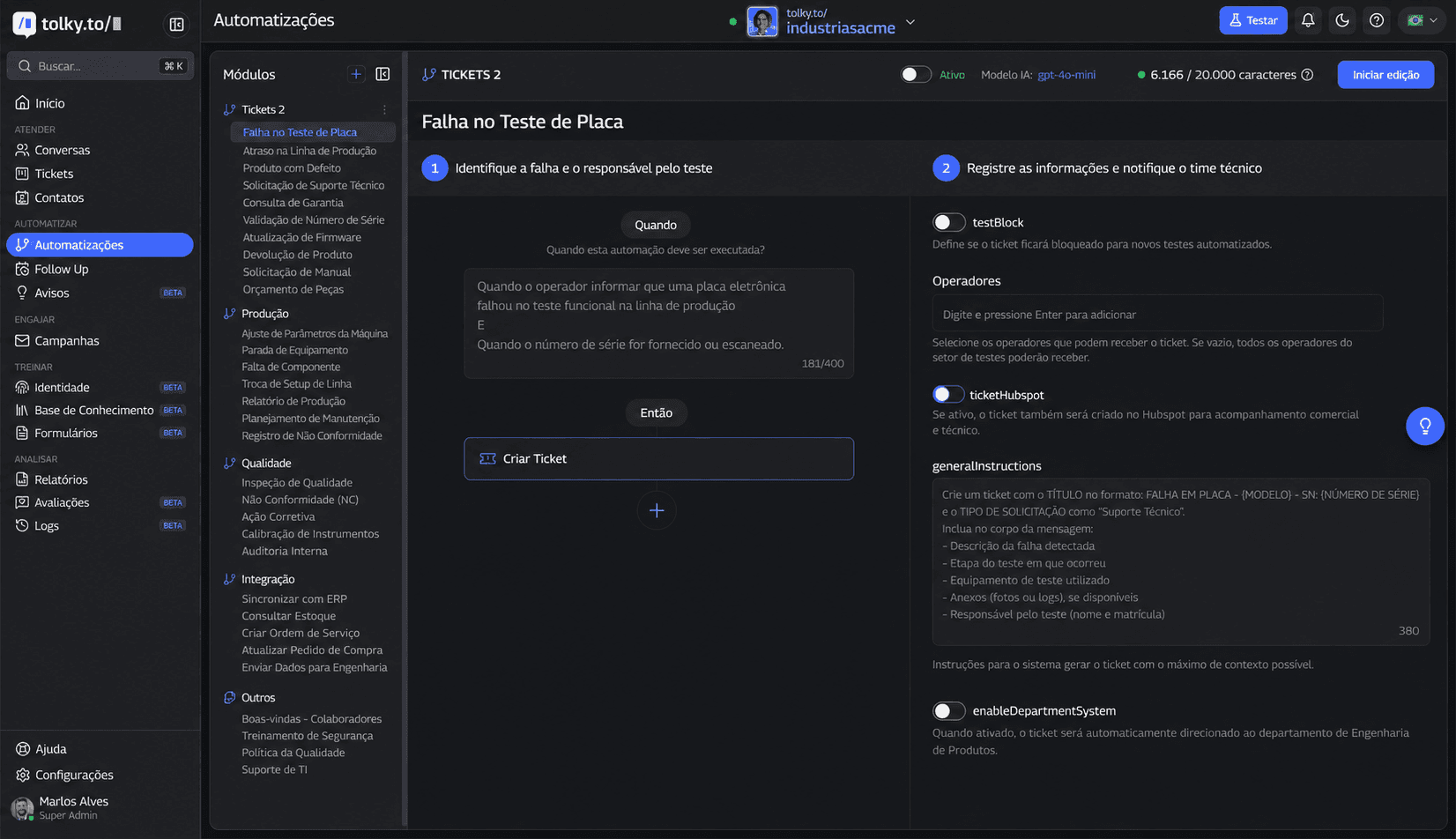
Tolky's AI chatbot for WhatsApp answers from the company's knowledge base, understands voice notes and hands the conversation to the team with its history. The number can stay on the phone app through coexistence.
What Tolky does not do: it does not configure greeting or away messages in the WhatsApp Business app, which are Meta features on the phone. WhatsApp starts on the Starter plan, at US$90 per month with 500 attendances; the free plan has webchat and AI, without WhatsApp. See the plans.
Frequently asked questions
How do I set up an auto reply on WhatsApp Business?
In the WhatsApp Business app, open the Tools tab and choose Greeting message or Away message. Turn on sending, edit the text, choose the recipients and, for away messages, the schedule. Tap Save.
What is the difference between a greeting message and an away message?
The greeting goes out on a customer's first message and after 14 days of inactivity, at any time of day. The away message goes out when you decide: always, on a custom schedule or outside business hours.
Can I set an auto reply on regular WhatsApp?
No. Greeting messages, away messages and quick replies are features of the WhatsApp Business app, which is free. The personal WhatsApp app has no auto reply.
Why isn't my away message being sent?
Check three things: the phone needs an internet connection, your business hours must be filled in on the profile for the "outside of business hours" option to work, and the customer must be among the recipients you chose.
How many quick replies can I save?
Up to 50, according to the WhatsApp Help Center. They can include photos and videos, but media does not work on WhatsApp Web or the desktop app.
How do I set up auto replies on the WhatsApp API?
On the API, auto replies come from the platform connected to the number, through flows or an AI agent. Inside the 24-hour window after the customer's message, free-form text is allowed; outside it, only approved templates.
Conclusion
A WhatsApp Business auto reply is the first step to never leaving a customer unanswered: greeting and away messages in the Tools tab, quick replies for repeated texts and short templates that say what happens next. When volume calls for rules, context and more than one person, auto replies move to the API, with flows and AI agents inside Meta's rules. For related topics, see the WhatsApp Business Guide.
See the plans, explore automation flows or talk to the team →. Let's talk?
Share
Tags
- whatsapp business auto reply
- whatsapp business away message
- whatsapp business greeting message
- whatsapp quick replies
- whatsapp auto reply templates
- how to set auto reply on whatsapp
- 24-hour window
- #whatsapp automation
About the author

Co-founder of Tolky
Marlos Carmo is an AI entrepreneur and founder of Tolky, the conversational-era infrastructure and AI CRM that unifies intelligent service, multi-channel support (such as WhatsApp and voice), live CRM, and operational intelligence in a single ecosystem. He is a finalist for the SXSW Innovation Awards and a member of Francesco's Economy, a global network of young entrepreneurs focused on innovation and social impact. He works connecting Artificial Intelligence and digital transformation in projects for large organizations.
Next step
Want to bring this to your operation?
Tati, Tolky's AI assistant, understands your scenario in a few questions, suggests the best path and connects you with someone from the team, with full context.
Share