WhatsApp Business Web: how to use it on a computer and its team limit
How to use WhatsApp Business Web on a computer: QR code linking, desktop app or browser, what works, the device limit and why it breaks down as your team grows.
TL;DR
WhatsApp Business Web is the WhatsApp Business app running in a computer browser, linked to the phone by QR code as a linked device. An account supports up to four linked devices, or up to ten with a paid Meta subscription, and they keep working even when the phone is offline. For teams, it lacks queues, routing and per-agent metrics; at that point, the path is multi-agent support on the official API.
Share
Answering customers on a phone gets tiring fast. WhatsApp Business Web brings your company's chats to the computer, with a keyboard and your files at hand.
As the team grows, though, the same number open on several computers becomes a problem: two people answer the same customer, another customer gets no reply and nobody knows who handled whom. This guide shows how to use WhatsApp Business on a computer, what it does, where it breaks down and what the alternative is for teams. The rules cited come from the WhatsApp Help Center, checked on November 19, 2026.
Updated in November 2026.
What is WhatsApp Business Web?
WhatsApp Business Web is the version of the WhatsApp Business app that runs in a computer browser, connected to the phone's account as a linked device. It shows the same chats as the phone and lets you send and receive messages at web.whatsapp.com.
It is not a new account: it is the same number and the same history on another screen. The phone remains the primary device, where the account is registered and new devices are linked.
If you are still deciding how to organize your company's WhatsApp, start with the WhatsApp Business guide for companies.
How to connect WhatsApp Business to your computer
To use WhatsApp Business on a computer, open WhatsApp Web or the desktop app and scan the QR code on the screen with your primary phone, under Linked devices. It takes just a few steps.


- On the computer, open web.whatsapp.com in a browser or the WhatsApp desktop app. A QR code appears on the screen.
- On the primary phone, open WhatsApp Business. On Android, tap More options; on iPhone, tap Settings.
- Tap Linked devices, then Link a device.
- Unlock the phone with biometrics or your PIN, if prompted.
- Point the camera at the QR code on the computer. Your chats appear right after.
These are the steps from the WhatsApp Help Center, checked on November 19, 2026. Meta also lets you link with your phone number instead of the QR code, according to the page about linked devices.
A tip for shared computers: before scanning, uncheck "Keep me signed in". The session then ends when the tab or browser is closed.
Desktop app or browser: which should you use?
WhatsApp Web runs in any supported browser with nothing to install; the desktop app is installed on Windows or Mac and runs as a separate program. Both are linked devices and show the same chats.
| Criteria | WhatsApp Web (browser) | WhatsApp desktop app |
|---|---|---|
| Installation | None, opens at web.whatsapp.com | From the Microsoft Store or the App Store |
| Systems | Any system with a supported browser | Windows 10.1 64-bit (version 1903 or later) and macOS 11 or later |
| Linking | QR code or phone number | QR code or phone number |
| Counts toward the device limit | As one linked device | As one linked device |
| Best for | Shared computers or quick access | Daily use on the same computer |
Requirements from the WhatsApp desktop download page, checked on November 19, 2026. The page points to WhatsApp Web for systems that cannot run the app.
What you can and cannot do on WhatsApp Business Web
On a computer, you can chat, send files and use the everyday business tools; some features, however, stay on the primary phone only. The restrictions come from the page about linked devices on the WhatsApp Business app, checked on November 19, 2026.
What works on linked devices:
- Chatting with customers, even when the phone is off or offline.
- Sending photos and documents straight from the computer.
- Replying to the same chats as on the phone.
What the Help Center says does not work on linked devices:
- Creating and viewing broadcast lists.
- Posting and deleting status updates.
- Sharing and viewing live location.
The same page lists a known issue: some linked devices cannot show up to a year of chat history. In that case, the advice is to check the history on the primary phone.
There is also a rule for staying connected. According to the Help Center, you must open WhatsApp Business on the primary phone every 14 days to keep linked devices connected.
How many people can use WhatsApp Business Web at the same time?
A WhatsApp Business account supports the primary phone plus up to four linked devices at the same time, so at most five screens without a subscription. With the multi-agent feature of the Meta Verified or Meta One subscriptions, the limit goes up to ten devices.
The figures are on the multi-agent page and the Meta Verified page for WhatsApp, checked on November 19, 2026. On Meta Verified, the cap depends on the plan: four devices on Basic, six on Plus, eight on Premium and ten on Max. Meta notes that the paid version may not be available to every business, and those pages do not list prices.
With multi-agent, you can name the agent on each device and assign a chat to someone manually. Two details matter: with more than four devices, calls ring only on the primary phone; and if the subscription is canceled, only the four most recently used devices stay connected.
Why does WhatsApp Business Web break down as the team grows?
WhatsApp Business Web breaks down as the team grows because it shows the same inbox to everyone, with no queue, no automatic routing and no per-agent metrics.


| What the team needs | What WhatsApp Business Web offers | What multi-agent support on the API offers |
|---|---|---|
| Order of arrival | The same chat list for everyone | A customer service queue per department |
| Who handles each customer | Manual assignment, subscription only | Automatic routing to whoever is available |
| Avoiding double replies | No lock between devices | The chat is reserved for whoever took it |
| Knowing who replied | Agent name only with multi-agent | History per agent and per ticket |
| Measuring the operation | Per-agent metrics not described by Meta | Reports on volume, time and resolution |
| Growing the team | Up to four devices, or ten with a subscription | Users according to the platform plan |
Day to day, it shows up in four ways:
- Chats with no owner. Everyone sees the same new message, and each person assumes someone else will reply.
- Double replies. Two people answer the same customer with different information.
- No shift handover. Whoever starts next does not know what is pending or what was promised.
- A manager in the dark. There is no response time, volume per person or abandoned-chat count.
What is the alternative for multiple agents on the same number?
The alternative for multiple agents on the same number is multi-agent support on the official WhatsApp API, through a customer service platform with a login per person, queues and transfers with history. With coexistence, the number can also stay in the phone app.
There are three paths, in order of effort:
- Stay in the app with multi-agent. It works for teams of up to ten devices that are fine organizing the queue by hand. See the no-cost options in free WhatsApp multi-agent support.
- Use the API with coexistence. The number stays on the phone and also works on a platform, with up to 180 days of history synced, according to Meta. Details in coexistence between the WhatsApp Business app and the API.
- Move the number fully to the API, for high-volume operations that no longer need the phone.
Avoid browser extensions and tools that automate WhatsApp Web without the official API: they put the number at risk of being banned. The reasons are in the risks of the unofficial WhatsApp API. To choose a tool, read the guide to a WhatsApp customer service platform; if the number belongs to the sales team, see how to integrate WhatsApp with a CRM without losing the app.
How to keep WhatsApp Business Web secure
To keep WhatsApp Business Web secure, check your linked devices often, log out of any you do not recognize and turn on two-step verification. That is the guidance in the WhatsApp Help Center, checked on November 19, 2026.


- Log out from the primary phone: Linked devices, tap the device and then Log out (official steps).
- Log out from the computer itself, under Settings, Log out, when the device has a problem.
- Do not check "Keep me signed in" on shared or public computers.
- Turn on two-step verification on the primary phone.
- Review the list when someone leaves the team, because the session stays active until it is logged out.
The Help Center notes that WhatsApp cannot tell you who accessed the account, when or from where.
Where Tolky fits
Tolky is an AI conversational CRM with multi-agent WhatsApp support on the official API: the team and the AI agent use the same number, each person with their own login, with queues and routing. With coexistence enabled for the account, the number stays in the phone app.
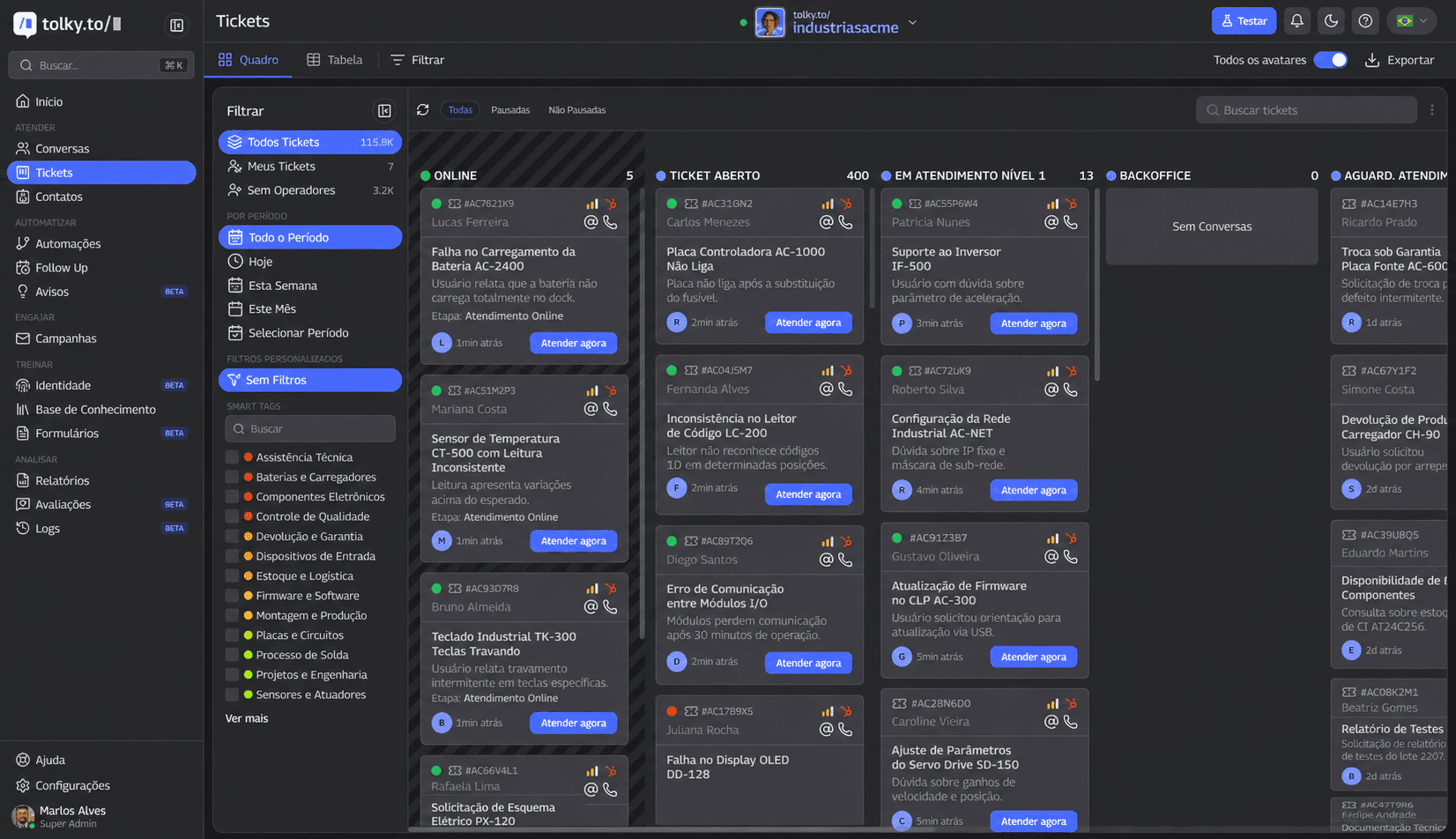
In Tolky's multi-agent support, the AI can answer first and classify the subject, the ticket goes to the right department and the queue routes it to whoever is available, with logged transfers and full history. Departments and queues are on the Professional and Enterprise plans.
WhatsApp is available from Starter, at US$90 per month with 500 attendances and 2 users; Professional costs US$450 with 1,000 attendances and up to 10 users (pricing, checked on November 19, 2026). Meta's fees are not included.
When you don't need Tolky: if one or two people answer from the computer without stepping on each other, free WhatsApp Business Web does the job.
Frequently asked questions
How do I use WhatsApp Business on a computer?
Open web.whatsapp.com or the WhatsApp desktop app and scan the QR code with your primary phone, under Linked devices, Link a device. The account then works on the computer as a linked device, with the same chats as the phone.
Does WhatsApp Business Web work with the phone off?
Yes. According to the WhatsApp Help Center, linked devices work even when the phone is offline. But you must open WhatsApp Business on the primary phone every 14 days to keep the devices connected.
How many computers can I connect to WhatsApp Business?
Up to four linked devices at the same time, plus the primary phone. With the multi-agent feature of the Meta Verified or Meta One subscriptions, the limit goes up to ten, depending on the plan.
Can multiple agents use WhatsApp Business Web on the same number?
Yes, up to the device limit, but everyone sees the same inbox, with no queue or automatic routing. For teams, the path is multi-agent support on the official API, with a login per person and queues.
How do I log out of WhatsApp Business Web on another computer?
On the primary phone, open Linked devices, tap the device and choose Log out. Do this whenever someone leaves the team or a device you do not recognize appears.
Is there a WhatsApp Business desktop app?
WhatsApp offers a desktop app for Windows and Mac, and a WhatsApp Business account can be linked to it as a linked device with the QR code. On systems that cannot run the app, the option is WhatsApp Web in the browser.
Conclusion
WhatsApp Business Web is the simplest way to answer customers from a computer and works well for one or two people. Beyond that, a shared inbox with no queue, no routing and no metrics starts losing customers. The next step is multi-agent support on the official API, ideally with coexistence, so you keep the phone.
Explore multi-agent support, see the plans, understand coexistence or talk to the team →. Let's talk?
Share
Tags
- whatsapp business web
- how to use whatsapp business on computer
- whatsapp business web multiple agents
- whatsapp business on pc
- whatsapp linked devices
- #whatsapp shared inbox
- customer service queue
- #conversational CRM
About the author

Co-founder of Tolky
Marlos Carmo is an AI entrepreneur and founder of Tolky, the conversational-era infrastructure and AI CRM that unifies intelligent service, multi-channel support (such as WhatsApp and voice), live CRM, and operational intelligence in a single ecosystem. He is a finalist for the SXSW Innovation Awards and a member of Francesco's Economy, a global network of young entrepreneurs focused on innovation and social impact. He works connecting Artificial Intelligence and digital transformation in projects for large organizations.
Next step
Want to bring this to your operation?
Tati, Tolky's AI assistant, understands your scenario in a few questions, suggests the best path and connects you with someone from the team, with full context.
Share