Meta Business Suite and WhatsApp: how to connect your business number
What Meta Business Suite, the business portfolio (formerly Business Manager) and WhatsApp Manager are, and how to connect WhatsApp, create the API account and verify your business.
TL;DR
Meta Business Suite is Meta's free dashboard for managing a company's Facebook Page, Instagram and WhatsApp, and it runs on a business portfolio, the current name for what used to be Business Manager. The portfolio holds the WhatsApp account, business verification and permissions; WhatsApp Manager is the screen where you manage the official API's phone numbers, message templates and limits.
Share
Anyone trying to bring a company's WhatsApp into Meta's ecosystem runs into three names that sound like the same thing: Meta Business Suite, Business Manager and WhatsApp Manager. Each one has a different job, and mixing them up usually ends with a number stuck in the wrong portfolio, a rejected verification or lost access.
This guide explains each tool and the path to connect WhatsApp, create the API account, verify your business and give access to the right people. Menu paths were checked against Meta's documentation on November 19, 2026; screens change, so confirm them in your own dashboard.
Updated in November 2026.
What is Meta Business Suite?
Meta Business Suite is Meta's free dashboard for managing a company's Facebook Page, Instagram account and WhatsApp in one place: posts, inbox, ads, insights and settings. It runs in the browser at business.facebook.com and in a mobile app.
According to Meta's Help Center, the Business Suite inbox brings together messages and comments from the Page, Messenger, Instagram and the WhatsApp Business account.
The point many people miss: to use Business Suite, the company needs a business portfolio. The dashboard is the window; the portfolio is what sits behind it.
What is a business portfolio (formerly Business Manager)?
A business portfolio is Meta's container for a company's assets (Pages, Instagram accounts, ad accounts and WhatsApp accounts) and the people who can access them. It is the current name for the old Business Manager; Meta's Help Center already uses "business portfolio" on its setup and management pages.


Three things that matter for WhatsApp live in the portfolio:
- Ownership of the WhatsApp account. Per Meta's documentation, each WhatsApp account belongs to only one portfolio.
- Business verification, which applies to every number tied to the portfolio.
- Permissions, from people with full control to people who can only view message templates.
To create one, Meta says to open business.facebook.com, open the menu below Home and choose the create option. Use the company's legal name, since it will be compared with your documents during verification.
What is WhatsApp Manager?
WhatsApp Manager is the Meta screen where a company manages the official API: phone numbers, the status of each number, message templates, messaging limits and billing details. It is not a support inbox: you cannot chat with customers through the API there.
Per Meta's documentation, checked on November 19, 2026, the path is Settings, Accounts, Messaging accounts, select the account and click WhatsApp Manager on the Summary tab. That is where you check whether a message template was approved and what the portfolio's messaging limit is.
What is the difference between Business Suite, the portfolio and WhatsApp Manager?
The portfolio holds the assets and permissions, Business Suite is the dashboard for running the Page, Instagram and WhatsApp, and WhatsApp Manager is the technical area for the official API. The table sums up what each one does.
| Tool | What it is | What it does for WhatsApp | Who uses it |
|---|---|---|---|
| Business portfolio (formerly Business Manager) | Container for the company's assets and people | Owns the WhatsApp account, runs business verification, grants access to people and partners | Company admin |
| Meta Business Suite | Management dashboard (web and app) | Inbox with the WhatsApp Business app, account settings, ads | Marketing and support |
| WhatsApp Manager | Official API area inside Business Suite | Numbers, message templates, limits, billing | IT, operations and the platform vendor |
| Ads Manager | Paid campaign tool | Creating click to WhatsApp ads | Marketing |
What changed in WhatsApp accounts in 2026?
In 2026 Meta split the old WhatsApp Business Account (WABA) in two: the WhatsApp account, which holds the phone number, and the Messaging account, which holds templates, billing and webhooks. Meta's update page says the first phase started rolling out on September 23, 2026, reaching all businesses by mid-October, with automatic migration.
What this means for admins:
- The old ID still works. The WABA ID now identifies the Messaging account, and existing integrations keep working.
- Business Suite shows two tabs. Under Settings, Accounts, you see WhatsApp accounts (numbers) and Messaging accounts (templates and billing).
- One number can have more than one Messaging account, one per partner, each with its own templates and payment method.
If your dashboard still shows the old screen, your account may not have been migrated yet.
How do you connect the WhatsApp Business app to Meta Business Suite?
To use the WhatsApp Business app inside Business Suite, you sync the number with the inbox: Inbox, WhatsApp tab, Get started, then follow the on-screen steps. The number stays on the phone, and conversations also appear in the dashboard. According to Meta's Help Center, syncing is not available in every country, and groups and Status do not appear in the inbox.
The path, checked on November 19, 2026:
- In Business Suite, select the Facebook Page or Instagram profile from the top-left menu.
- Open Inbox, go to the WhatsApp tab and click Get started.
- Choose a WhatsApp account already in the portfolio or add a new one (adding one requires approval from someone with full control of the portfolio).
- Confirm the number with the code sent through the WhatsApp Business app.
Do not confuse this with linking WhatsApp to your Facebook Page under Page settings, Linked accounts: that link powers the WhatsApp button and ads, and it does not bring conversations into the dashboard.
How do you create the official WhatsApp API account (WABA)?
The official API account can be created in three ways: through a partner's Embedded Signup, through Business Suite settings or through Meta's App Dashboard for developers. In every case, the account lives in a business portfolio, which should be the company's own.


| Path | How it works | Best for |
|---|---|---|
| Embedded Signup | The support platform opens a Meta window; you log in, choose the portfolio and connect the number | Most companies, which will use a platform |
| Business Suite | Settings, Accounts, WhatsApp accounts or Messaging accounts, Add button | Teams that run everything in Meta and connect the vendor later |
| App Dashboard (developers) | After the Cloud API getting-started steps, WhatsApp, API Setup, add a production number | Technical teams integrating the API themselves |
Source: Meta's WhatsApp accounts documentation, checked on November 19, 2026.
On any path, a portfolio starts with 2 registered phone numbers, a limit that can go up to 20, and the number must receive a confirmation code by SMS or voice call. If it is already on the WhatsApp Business app, choose between migrating it or using coexistence, where it stays on the phone and also works on the API. The full walkthrough is in the guide on how to get the official WhatsApp Business API.
How do you verify your business with Meta?
Business verification happens in Business Suite's Security Center: Start verification, enter the company's legal details, upload a document if Meta finds no record and confirm by email, phone, WhatsApp or domain. Only people with full control of the portfolio see the option.
The path, per Meta's Help Center, checked on November 19, 2026:
- Open Security Center and click Start verification.
- Enter the legal name, address, phone number and website exactly as in the official record. The website must load over HTTPS.
- If Meta finds no matching record, upload an official registration document, such as articles of incorporation.
- Confirm the connection by email, phone, text message, WhatsApp or domain verification.
Verification is not required to start messaging, but it matters later. Per Meta's documentation, an unverified portfolio is capped at 250 templates per Messaging account; a verified one with at least one approved display name can have up to 6,000. It is also required to raise messaging limits and to request an Official Business Account with the badge.
How do you give people and partners access to the portfolio?
WhatsApp access is granted in the portfolio: people get full control or partial access, and partners, such as your support platform, get access only to the assets they need.


- Full control belongs to a few company admins, ideally more than one. Only people with full control can add partners, start verification and approve new WhatsApp accounts, per Meta's Help Center pages on partners and verification.
- Partial access covers the rest of the team, limited to tasks such as viewing templates or managing numbers.
- Partners are added with their portfolio ID under Settings, Partners. The vendor gets access to the asset; the asset stays yours.
After the 2026 split, Meta's access token documentation warns that Business Suite does not cascade access: the system user behind an integration must be assigned to both the WhatsApp account and the Messaging account.
Common mistakes when connecting WhatsApp to Meta
The costliest mistake is leaving the WhatsApp account in the vendor's or agency's portfolio instead of the company's own. When you switch providers, the number, templates and history stay with someone who does not own the business.
Other frequent mistakes:
- Creating duplicate portfolios, scattering the Page, ads and WhatsApp.
- Having a single admin. If that person leaves or loses access to their profile, no one can approve partners or verification.
- Mismatched verification details, such as a trade name instead of the legal name, or a website without HTTPS.
- Treating WhatsApp Manager as a support inbox. It manages numbers and templates; API conversations happen in a platform.
- Registering a number that is in use on the app without first deciding between migration and coexistence.
For the full picture of WhatsApp for business, from the app to the API, see the WhatsApp Business guide for companies.
Where Tolky fits
Tolky is an AI conversational CRM that connects your business number to the official WhatsApp API, directly with Meta through the "Connect with Meta" button or through Gupshup, an official Meta partner. The button opens Embedded Signup: you log in with your Meta account, choose your own company's portfolio and connect the number, with nothing to install. When coexistence is enabled for the account, the number also stays on the phone.
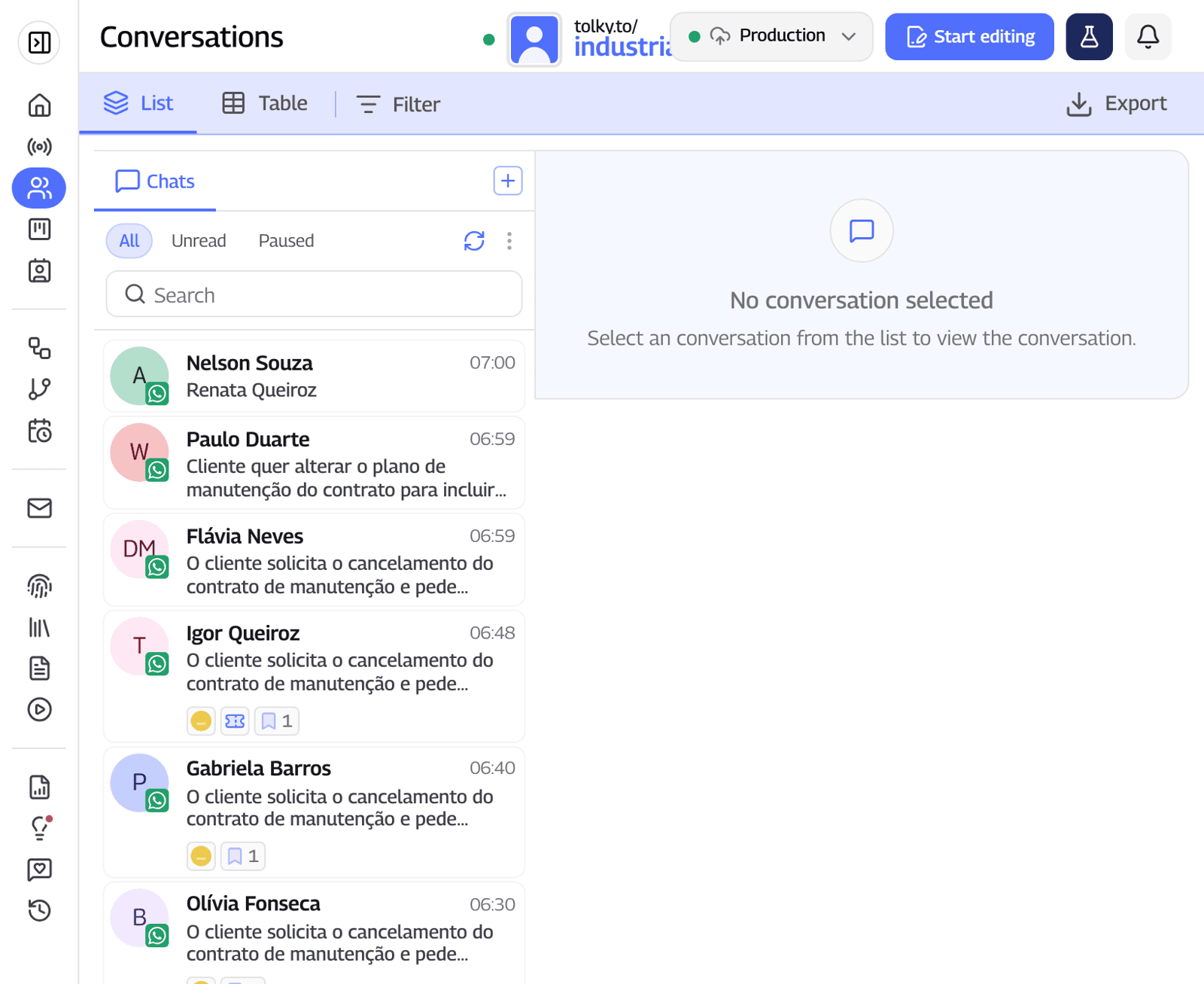
Once the number is connected, the AI agent replies, the WhatsApp CRM records the contact and the conversation, and the team takes over with the full history when the AI hands off. WhatsApp is available from the Starter plan, at US$90 per month with 500 attendances; see the plans.
What Tolky does not do: it does not replace the portfolio or Meta's rules. Business verification, display name approval and messaging limits apply to every vendor, and Meta's per-message fees are not included in the plan.
Frequently asked questions
Are Meta Business Suite and Business Manager the same thing?
No. Business Manager, now called a business portfolio, is the container for the company's assets and permissions. Meta Business Suite is the dashboard where you work with those assets, and it needs a portfolio to run.
Do I need Meta Business Suite to use the WhatsApp API?
You need a business portfolio, which is managed through Business Suite. In most cases, the API account is created through a platform's Embedded Signup, which asks you to choose the portfolio.
Where is WhatsApp Manager?
In Business Suite, under Settings, Accounts, Messaging accounts: pick the account and click WhatsApp Manager on the Summary tab, per Meta's documentation checked on November 19, 2026. Accounts not yet migrated may still show the old path.
Can I connect the WhatsApp Business app to Business Suite without losing the number on my phone?
Yes. Syncing with the inbox keeps the number on the app, where the feature is available. To use the API without removing the number from the app, the path is coexistence.
Is business verification mandatory?
Not to start messaging. It is required to raise messaging and template limits and to request an Official Business Account with the badge, so it pays to do it early.
How many WhatsApp numbers fit in a portfolio?
Per Meta's documentation, a portfolio starts with 2 registered numbers, and the limit can go up to 20. Each number is tied to a WhatsApp account.
Conclusion
Meta Business Suite, the business portfolio and WhatsApp Manager are layers of the same system: the portfolio is the owner, Business Suite is the dashboard and WhatsApp Manager handles the API. Start with a portfolio in the company's name, with two admins and verification done, and only then connect the number, the platform and your ads.
See Tolky's plans, explore the WhatsApp CRM, learn about coexistence or talk to the team →. Let's talk?
Share
Tags
- meta business suite whatsapp
- meta business suite
- business manager whatsapp
- meta business portfolio
- whatsapp manager
- whatsapp business api account
- business verification
- #conversational CRM
About the author

Co-founder of Tolky
Marlos Carmo is an AI entrepreneur and founder of Tolky, the conversational-era infrastructure and AI CRM that unifies intelligent service, multi-channel support (such as WhatsApp and voice), live CRM, and operational intelligence in a single ecosystem. He is a finalist for the SXSW Innovation Awards and a member of Francesco's Economy, a global network of young entrepreneurs focused on innovation and social impact. He works connecting Artificial Intelligence and digital transformation in projects for large organizations.
Next step
Want to bring this to your operation?
Tati, Tolky's AI assistant, understands your scenario in a few questions, suggests the best path and connects you with someone from the team, with full context.
Share