WhatsApp Business calls: how to make, receive and answer them with AI
How to make and receive WhatsApp Business calls on your phone and computer, how to silence callers, what to check when calls do not ring and how to answer calls with AI through the API.

TL;DR
WhatsApp Business calls work just like regular WhatsApp calls: you call from the chat or the Calls tab, on your phone or computer, over the internet. The app works for a small business, but it has no queue, no transcription and no AI on the line; for several people to answer and an AI to talk to customers, calls need to go through the Calling API, the business version of the official API.
Share
Many small businesses serve customers through the WhatsApp Business app, and calls arrive right alongside messages. That is where the questions start: how to call from a computer, why the phone did not ring, how to stop calls from unknown numbers and what to do when there are more calls than one person can handle.
This guide answers the practical questions using WhatsApp's official Help Center, then explains where the app reaches its limit for businesses and how the API path works, with several people answering and an AI talking to the customer.
Updated in November 2026.
Can WhatsApp Business make and receive calls?
Yes: the WhatsApp Business app makes and receives voice calls over the internet, the same way regular WhatsApp does, on your phone and on your computer. The Help Center treats calling as a single WhatsApp feature, with the same screens in both apps.
Two points apply to any call made through the app, according to the article how to make a voice call, checked on November 20, 2026:
- Calls use your internet connection, not your plan's minutes. Your carrier may still charge for mobile data.
- WhatsApp cannot call emergency services. Use a regular phone line for those.
Receiving works the same way: the customer taps the phone icon in the chat and the business's device rings. See also WhatsApp calling in our glossary.
How do you make a WhatsApp Business call on your phone?
On your phone, you call from the phone icon inside the chat or from the Calls tab, which also has a keypad for numbers that are not in your contacts. The steps below follow the Help Center's Android version.
From the chat with the customer
- Open the individual chat with the contact.
- Tap the voice call icon at the top of the screen.
- During the call, you can switch to video with the camera icon or open the chat to send a message.
From the Calls tab, including numbers not in your contacts
- Open the Calls tab and tap the new call icon.
- Choose the contact and tap voice call.
- For a number that is not saved, tap the keypad icon, type the number and call. If the number is not on WhatsApp, the app offers to call it by phone and invite the person.
A regular phone call is billed by your carrier as usual. Group calls and call links have their own articles on the Help Center calling page.
How do you make a WhatsApp Business call on a PC or laptop?
On a computer, open the chat in WhatsApp Web or the desktop app, click the call icon and choose voice. The Help Center calling article, on its Web tab, lists what you need (checked on November 20, 2026):
- Internet on both the computer and the phone.
- A microphone and audio output connected to the computer.
- A supported system: the Help Center mentions Windows, Linux and macOS for WhatsApp Web calls.
During the call, the microphone icon mutes and unmutes you. The Help Center recommends headphones, because external speakers and microphones can cause echo. When a call reaches your computer, a notification lets you accept or decline it.
Setup, multi-agent and limits are covered in our WhatsApp Business Web guide.
How do you decline, silence or block WhatsApp Business calls?
To avoid interruptions, the app gives you three options: decline the call, silence unknown callers and block a contact. The Help Center articles we reviewed do not describe a switch that turns off every call in the app, so people searching for how to "disable calls on WhatsApp Business" usually solve it with these three options.
Silence unknown callers
According to the article how to silence unknown callers, checked on November 20, 2026, the Android path is More options > Settings > Privacy > Calls > Silence unknown callers. The call still shows up in the Calls tab and in notifications, but the phone does not ring.
There is a catch for businesses: a new customer is, by definition, an unknown number. With the option on, their first call will not ring. If you call or message that number, their calls stop being silenced.
Call waiting
If another WhatsApp call arrives during a call, the app shows a prompt to accept or decline, according to the article how to use call waiting. Accepting ends the current call; declining keeps you on it. There is no queue: the second person is only answered if the first one hangs up.
WhatsApp Business is not receiving calls: what should you check?
When WhatsApp Business does not receive calls, the cause is usually the connection, microphone and notification permissions, unknown callers being silenced or the number of linked devices. The article why can't I make voice calls, checked on November 20, 2026, lists the steps below, written for WhatsApp Web.
| Symptom | What to check |
|---|---|
| The call does not connect or drops right away | A stable connection; switch Wi-Fi networks or move to mobile data |
| Nobody can hear you on the computer | Microphone permission for the browser or app; no other program using the mic |
| The call does not reach the computer | Notification permissions in the browser and the operating system; updated browser |
| Works at home, not at the office | Router firewall allowing UDP and TCP ports 3478, 3480 and 443 |
| A new customer's call does not ring | Silence unknown callers is turned on |
| Rings on the phone but not on other devices | More than four linked devices (see below) |
The last item confuses teams with several agents the most. The article about multi-agent, checked on November 20, 2026, says accounts with up to four linked devices receive calls on all of them, while accounts with more than four receive calls only on the primary phone.
When a call rings once and ends with "contact unavailable," the problem may be on the other side: a device issue, Focus or Do Not Disturb mode, no internet connection or a block.
What are the app's limits for business calls?
The WhatsApp Business app is built for one person to answer one call at a time: the call rings on the linked devices, whoever picks up first answers, and there is no queue, no transcription and no AI on the line. That limit shows up as soon as call volume grows.


In practice, the limits are:
- One person per call. If they are already on a call, the new customer gets the call waiting prompt or goes unanswered.
- No record of what was said. The Help Center does not describe call transcription in the app. What was agreed stays in the memory of whoever answered.
- No business hours for calls. After hours, the phone rings anyway or has to be silenced by hand.
- No AI answering. Nobody resolves the repetitive request while the team is busy.
Coexistence does not change this. Businesses that connect their app number to the API through coexistence between the app and the API keep calls in the app: in Meta's documentation on onboarding app users to Cloud API, checked on November 20, 2026, voice and video calls are listed as "not supported" by the API in this mode.
How do WhatsApp calls work through the API?
Through the official API, the Calling API lets a business receive and place WhatsApp voice calls from a platform, with several people answering, AI on the line and each call recorded in the system.


According to the Calling API documentation, checked on November 20, 2026:
- The number must be on Cloud API, not on the WhatsApp Business app, with calling enabled.
- Incoming calls work in every country where Cloud API is available.
- Business-initiated calls require the contact's prior permission and are not available for business numbers from the United States, Canada, Egypt, Vietnam and Nigeria.
- Business settings include call hours, blocking callers and callback requests.
On the Calling API pricing page, checked on the same date, all user-initiated calls are free. Billed calls are charged in six-second pulses, by the country of the number called and by the monthly volume tier, and the call permission request is billed as a message.
The full guide, with requirements and costs, is in WhatsApp Business Calling API.
App or API: which should you use for calls?
Use the app while one person can handle the calls; move to the API when you need several people answering, AI on the line or calls recorded in the customer's history. The table sums up the difference.
| Criterion | WhatsApp Business app | Official API (Calling API) |
|---|---|---|
| Who answers | Whoever picks up a device first | Team and AI agent, with rules |
| Devices | Up to 4 ring together; above that, only the primary phone | The business's platform, outside the app |
| AI on the call | No | Yes, with handoff to a person |
| Record | Not described in the Help Center | Can go into the contact's history, depending on the platform |
| Call hours | Not described in the Help Center | Configurable call hours |
| Business calls the customer | Yes, as on regular WhatsApp | Only with the contact's permission |
| Call cost | Internet data | Incoming free; business-initiated billed by duration |
For everything else that changes between the two, read the WhatsApp Business guide for companies.
Where Tolky fits in
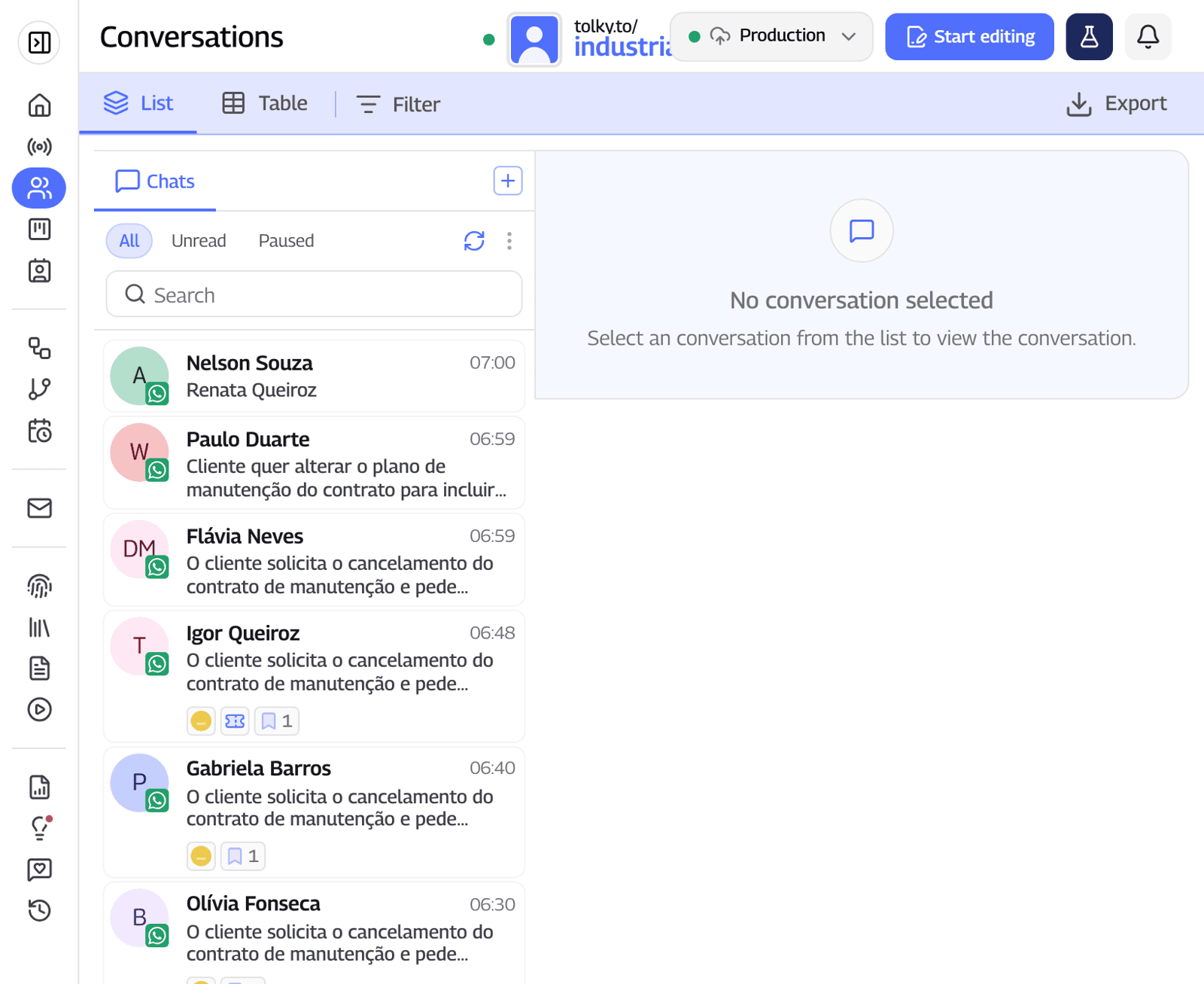
Tolky is a conversational AI CRM that answers WhatsApp calls through the official API with the same AI that already replies by text, and puts the transcript in the contact's history. Voice customer service is turned on by request and also covers phone lines and voice on your website.
- The AI answers the call. Natural speech with the voice and accent you choose, it accepts interruptions and hands off to an agent when the case calls for it. If the assigned agent does not pick up, the call rings for other agents.
- The team follows calls live. You can see calls in progress, filter by AI or person, listen in and join the audio; when the agent speaks, the AI goes silent.
- One history. The call transcript sits next to the text conversations, and agents can call by WhatsApp or phone straight from the chat.
- WhatsApp permission. For the business to call, Tolky sends the request as a template or message, shows the status (granted, declined, pending) and uses a regular phone line for those who did not grant it.
If the goal is for the business to call its own contact list, Voice Campaigns place calls over WhatsApp, the phone network or both, with a script and a goal. For the theory behind voice agents, see AI voice agent for customer service.
What Tolky does not do: it does not change the WhatsApp Business app on your phone or add AI to calls that stay in the app. AI calls go through the official API; if your number is in coexistence, check with the team how calls work in your case.
Frequently asked questions
Does WhatsApp Business receive regular phone calls?
It receives calls made through WhatsApp, over the internet. Regular phone calls arrive in the phone's dialer app, not in WhatsApp. To answer both in one place, a business needs a platform that brings WhatsApp and phone lines together.
Can I make a WhatsApp Business call from my PC?
Yes. In WhatsApp Web or the desktop app, open the chat, click the call icon and choose voice. You need internet, a microphone and audio output; the Help Center recommends headphones to avoid echo.
Why doesn't WhatsApp Business ring when a customer calls?
The most common causes are Silence unknown callers turned on, missing notification or microphone permissions, an unstable connection and more than four linked devices, in which case only the primary phone rings. Check the symptom table above.
How do I turn off calls on WhatsApp Business?
The Help Center articles we reviewed do not describe an option to turn off every call in the app. You can silence unknown callers, decline the call or block a contact. Through the API, a business can set call hours.
Can AI answer WhatsApp Business calls?
Not in the app. Through the official API, with the Calling API, a voice agent answers the call, talks with the customer and hands off to a person when needed. The number must be on Cloud API.
How much does it cost to receive WhatsApp calls through the API?
According to Meta, all user-initiated calls are free. Billed calls are charged by duration in six-second pulses, and the permission request for the business to call is billed as a message.
Conclusion
For businesses with few calls, WhatsApp Business calling does the job: you can call and answer on your phone and computer, silence unknown callers and fix the most common problems with the Help Center's steps. When calls outgrow what one person can answer, the path is the official API, with a team, AI on the line and every call recorded in the customer's history.
Explore voice customer service, see Voice Campaigns, see the plans or talk to the team →. Let's talk?
Share
Tags
- whatsapp business calls
- whatsapp business not receiving calls
- whatsapp business call on pc
- silence calls whatsapp business
- whatsapp business calling api
- #whatsapp calling
- #ai voice agent
- #conversational CRM
About the author

Co-founder of Tolky
Marlos Carmo is an AI entrepreneur and founder of Tolky, the conversational-era infrastructure and AI CRM that unifies intelligent service, multi-channel support (such as WhatsApp and voice), live CRM, and operational intelligence in a single ecosystem. He is a finalist for the SXSW Innovation Awards and a member of Francesco's Economy, a global network of young entrepreneurs focused on innovation and social impact. He works connecting Artificial Intelligence and digital transformation in projects for large organizations.
Next step
Want to bring this to your operation?
Tati, Tolky's AI assistant, understands your scenario in a few questions, suggests the best path and connects you with someone from the team, with full context.
Share