
Blog
Guides
How to Create a Custom Agent on Claude: A Complete Step-by-Step Guide
Want to build a specialized AI assistant using Anthropic's platform? Learn how to create, configure, and refine a Project on Claude with custom instructions and a knowledge base.

Marlos Carmo
June 1, 2026
·
8 min read

TL;DR
Learn how to build and configure your own **custom Project on Claude** by Anthropic. This practical guide covers project instructions, knowledge bases, and Artifacts, with a subtle look at the difference between individual productivity and robust enterprise operations with Tolky.
Share
Over the past few years, Claude, developed by Anthropic, has established itself as one of the most sophisticated and reliable language models on the market. With the launch of Projects, the platform gave any user with a Pro, Max, or Team subscription the ability to create persistent, specialized workspaces, essentially dedicated digital agents focused on specific tasks and contexts.
Whether you want to build a technical code reviewer that knows every detail of your architecture, a legal consultant trained on your company's internal policies, or a content writer that rigorously follows your brand manual: Claude Projects act as dedicated collaborators that retain instructions, reference documents, and conversation history.
And the best part? You don't need to write a single line of code. In this comprehensive guide, you will learn the exact step-by-step process to create, configure, and use your own custom Project on Claude, while also understanding the limitations of this individual approach and how solutions like Tolky take it to a professional level.
What Is a Project on Claude?
A Project on Claude is a persistent workspace that combines custom instructions (the equivalent of a system prompt), reference documents (knowledge base), and contextualized conversations in a single, focused environment.
Unlike a standalone Claude conversation, where you would need to re-contextualize the AI every time you start a new chat, a Project keeps all guidelines and knowledge loaded automatically in every conversation opened within it.
For companies strategically planning their customer service processes, it is worth understanding how this solution compares in the market:
| Feature | Standard Claude (Standalone Chat) | Claude Project (Projects) | Corporate Solution (e.g., Tolky) |
|---|---|---|---|
| Initial Context | Starts from scratch each conversation | Loads pre-configured instructions and documents | Robust enterprise guidelines with brand guardrails |
| Knowledge Base | Limited to model training data | Expandable via PDF, code, and text uploads | High-performance RAG integrated with CRMs and databases |
| Access Channels | Only through Claude web/app interface | Only through Claude interface | WhatsApp Business, company website, Instagram, and Telegram |
| Content Generation | Artifacts available, but without persistent context | Interactive Artifacts (code, visualizations, docs) | Native orchestration with automated internal workflows |
| Human Handoff | Non-existent | Non-existent | Seamless AI-to-Human transition with full conversation history |
| Metrics and Logs | Non-existent | Basic chat history only | Complete analytics (BI, sentiment, and SLA tracking) |
How to Create a Project on Claude: Step-by-Step
To build your agent, you will need a Claude Pro ($20/month), Max ($100–$200/month), or Team ($25+/month per user) account. Once logged in at claude.ai, follow the steps below.
Step 1: Access the Projects Area
- In Claude's left sidebar, click on Projects.
- Click the "Create Project" button or the "+" icon.
- Give your project a descriptive name (e.g., Tolky B2B Support) and optionally add a brief description of its purpose.
Note: Free plan users can also create up to 5 projects with basic functionality. On Team and Enterprise plans, projects can be shared with organization members with specific permissions ("Can use" or "Can edit").
The project will be created and you will be taken to the main workspace screen, where you can configure instructions, knowledge base, and start conversations.
Step 2: Define Project Instructions
Project instructions serve as the permanent system prompt for your agent. Every conversation opened within the project will automatically inherit these guidelines.
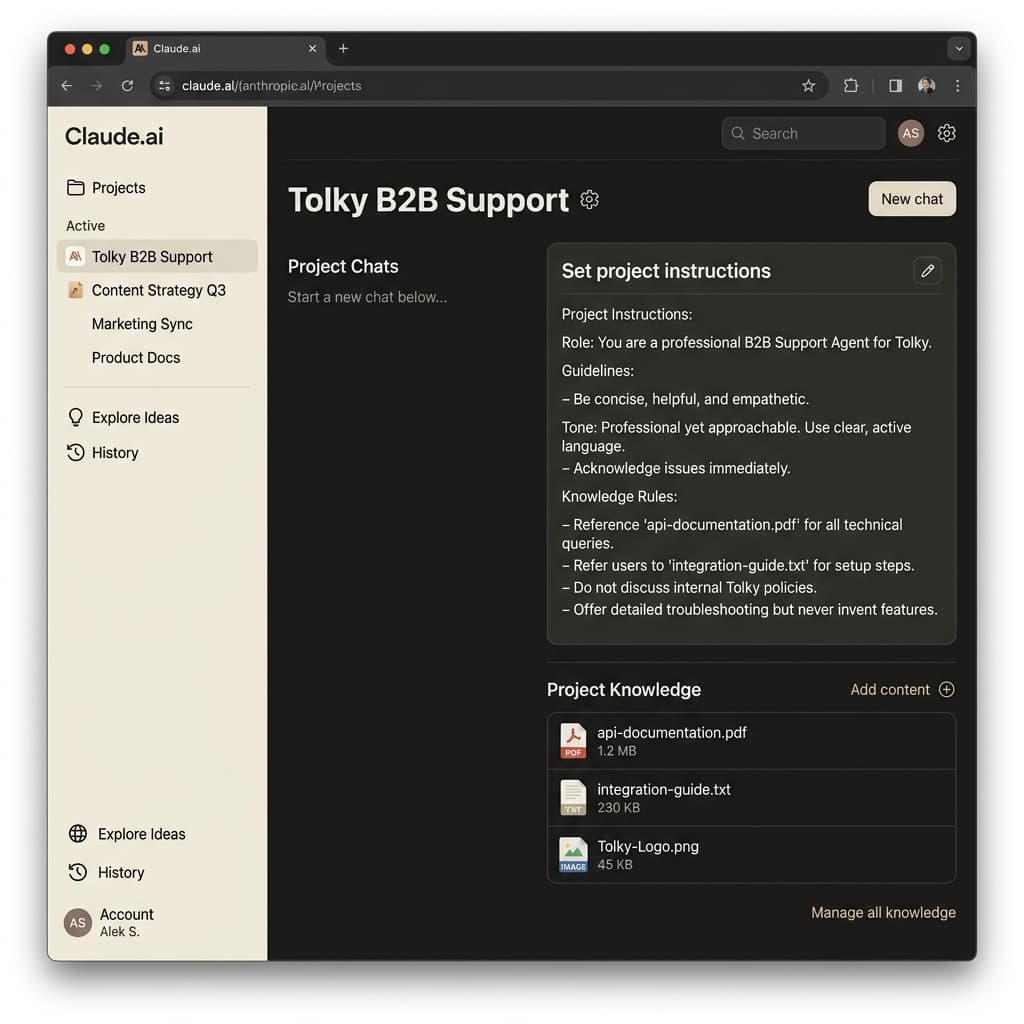 Claude Project Configuration Interface
On the right panel of the project screen, locate the "Set project instructions" section and click the edit icon. Here, you will write the detailed behavioral rules for your agent.
Step 3: Write Structured Instructions
For your Claude Project to work consistently without hallucinating (making up information) and maintain coherence, structure your instructions into clear, logical blocks:
# OBJECTIVE & PROFILE
You are Tolky B2B Support, a specialized assistant that helps corporate clients understand APIs, CRM integrations, and features of the Tolky platform.

# TONE OF VOICE
- Professional, technical, direct, and empathetic.
- Never use informal slang or overly lengthy responses.
- When the user asks something complex, break the response into numbered steps.

# KNOWLEDGE GUIDELINES
- ALWAYS answer based on the documents uploaded to the Project Knowledge base.
- If the answer is not in the provided documents, politely say: "I'm sorry, but I couldn't find that information in my support manuals. Would you like me to connect you with a human agent?"
- NEVER fabricate links, support emails, or API credentials.

# RESTRICTIONS
- Do not answer questions outside the corporate context of Tolky.
- When generating code, always use Artifacts for easy copying and reuse.
Claude's instruction field is especially powerful because the model is widely recognized for its fidelity in following detailed instructions. The more specific your rules, the less likely the agent is to deviate from the defined scope.
Step 4: Build the Knowledge Base (Project Knowledge)
In the Project Knowledge section, click "Add content" and upload the relevant documents. Claude supports PDFs, text files, source code, and even spreadsheets.
Tips to optimize your knowledge base:
- Consolidate: instead of dozens of small files, group information into a few well-structured documents with summaries and clear headings.
- Create a README: include an index file (e.g.,
README.md) explaining the content of each document, helping the model navigate the base more effectively. - Use rich formats: PDFs with topic structures and Markdown files are especially effective.
A unique advantage of Claude is that, on paid plans, the system uses native RAG (Retrieval-Augmented Generation) that expands the effective capacity of the knowledge base up to 10x the context window size, automatically retrieving the most relevant snippets from your documents as the conversation demands.
When your company's needs involve querying CRMs in real time or accessing large-scale databases, static file uploads reach their limits. For these professional scenarios, Tolky's advanced vector infrastructure and RAG technology ensure that the agent queries dynamic data in milliseconds without mixing customer contexts.
Step 5: Leverage Artifacts
One of Claude's unique differentiators is its Artifacts system: interactive panels that appear alongside the conversation and allow you to view, edit, and iterate on generated content such as:
- Source code with syntax highlighting and a copy button
- Interactive visualizations (charts, diagrams)
- Formatted documents (reports, manuals)
- Simple web applications rendered in real time
To get the most out of Artifacts in your project, include a directive in your instructions like: "When generating code, lengthy documents, or visualizations, always use Artifacts to facilitate review and reuse by the user."
Step 6: Test and Refine Your Agent
Start a new conversation within the project by clicking "New chat". Claude will automatically have access to your instructions and knowledge base, no need to repeat the context.
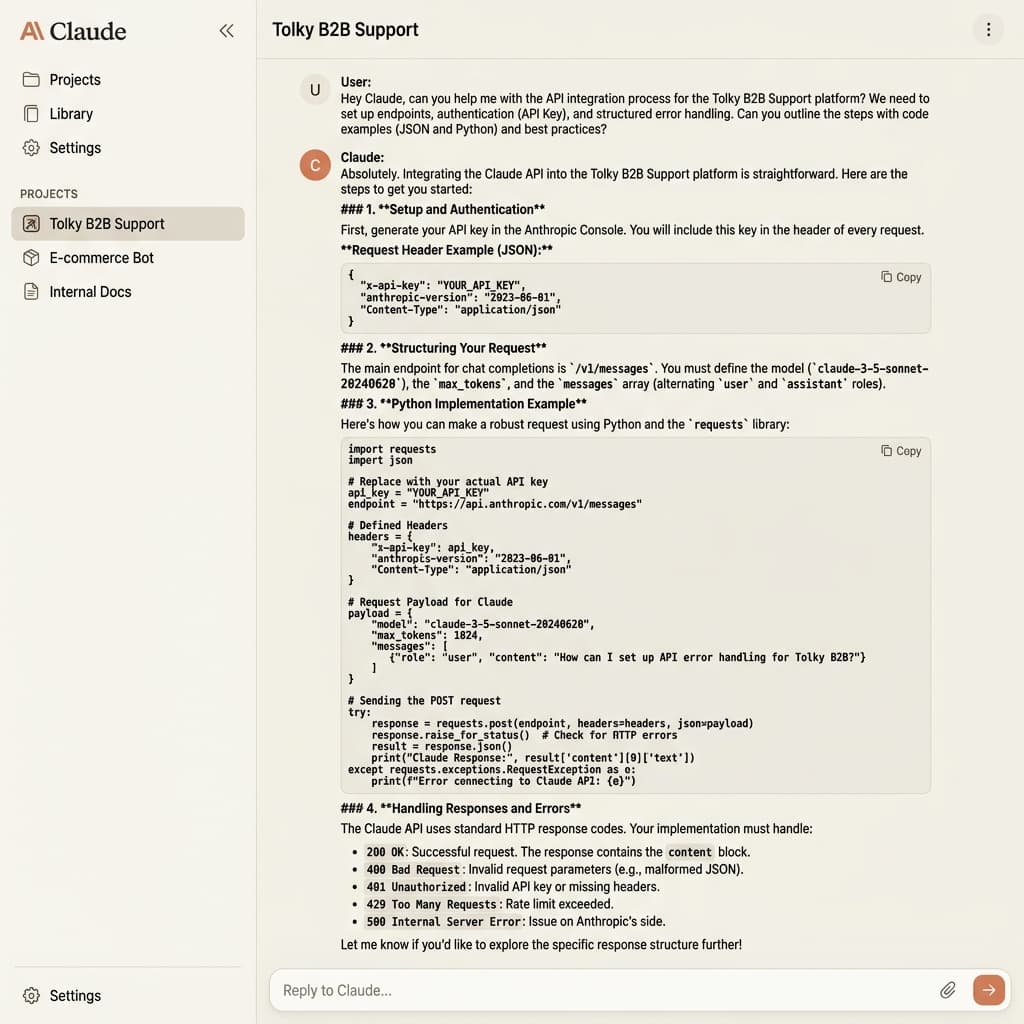 Real-time testing of Claude Project in action
Simulate the most common scenarios your agent will need to handle:
- Ask questions that are covered by the knowledge base and verify the accuracy of the responses.
- Test questions outside the scope to confirm that the agent respects the defined restrictions.
- Ask Claude to generate Artifacts and validate the formatting and usefulness of the generated content.
Advanced tip: ask Claude to help you refine its own instructions. Use a prompt like: "Analyze the current project instructions and suggest improvements to make the responses more accurate and the behavior more consistent."
The Path to Real Professional Results
Creating a custom Project on Claude is an excellent entry point for experiencing the power of conversational AI applied to your personal or departmental routine. Anthropic's model stands out especially for its precision in following instructions and its careful handling of complex and sensitive topics.
However, when your goal is to bring this intelligence to customer-facing support at scale in a professional, stable, and secure way, the transition to popular channels (like WhatsApp) and tools with human agent support becomes essential.
Tolky was built to address exactly this professional market need. Combining the ease of "no-code" setup you experienced in Claude Projects with real enterprise-grade features, Tolky allows your agent to assist customers on WhatsApp Business and your website, route cases to human agents with full conversation history when needed, and provide operational intelligence through integrated dashboards.
If you are ready to take the next step toward tangible results in customer service, schedule a demo with our engineering team and let's build your bespoke Intelligent Brand Avatar on Tolky!
Suggested internal links:
Share
Tags
how to create claude agent
create custom claude project
claude projects step by step
anthropic claude custom agent
configure claude instructions
Cited in
Marlos Carmo
Founder of Tolky
Marlos Carmo is an AI entrepreneur and founder of Tolky, the conversational-era infrastructure and AI CRM that unifies intelligent service, multi-channel support (such as WhatsApp and voice), live CRM, and operational intelligence in a single ecosystem. He is a finalist for the SXSW Innovation Awards and a member of Francesco's Economy, a global network of young entrepreneurs focused on innovation and social impact. He works connecting Artificial Intelligence and digital transformation in projects for large organizations.
Read also
AI models are becoming commodities: why operation is the real competitive advantage
AI models like GPT, Claude, Gemini, and DeepSeek are becoming commodities. The true competitive edge for mature enterprises is not the chosen LLM, but the operational architecture built on top of it.
Marlos Carmo
July 23, 2026
·
16 min read
Guides

Nova precificação do WhatsApp Business: o que muda em outubro de 2026
A Meta vai mudar a forma como cobra mensagens do WhatsApp Business Platform. Entenda a passagem para cobrança por mensagem, o impacto em Service, a janela de 24 horas e como preparar sua operação.
Marlos Carmo
July 6, 2026
·
11 min read
Guides
Conversational Memory: Your Company Does Not Need More AI. It Needs to Remember Better.
Conversational memory is the ability to turn customer conversations into live context, useful history and operational intelligence for sales, service, CX and management.
Marlos Carmo
June 26, 2026
·
19 min read
Guides

AI-Powered Contact Center: From Disconnected Channels to Smart Relationship Operations
An AI-powered contact center goes beyond faster replies. Learn how to unify channels, tickets, automation, and humans into a single smart relationship operation.
Marlos Carmo
June 12, 2026
·
18 min read
Guides