
Blog
Guides
How to Create a Custom Gemini Gem: A Complete Step-by-Step Guide
Looking to automate your daily tasks or build a bespoke virtual expert? Learn how to build, configure, and refine your own Gemini Gem, and understand the transition to robust corporate solutions.

Marlos Carmo
May 31, 2026
·
8 min read
TL;DR
Discover how to build and configure your own **Custom Gem in Google Gemini**. This practical guide covers the creation panel, instruction design, and capabilities, with a subtle look at the transition to robust enterprise operations with Tolky.
Share
With the rapid advancement of language models, artificial intelligence has evolved from a simple question-and-answer interface into a personalized productivity ecosystem. Following this movement, Google launched Gemini Gems (or simply "Gems"), giving users the ability to create customized versions of Gemini tailored for specific, individual goals.
Whether you want to build a coding copilot specialized in React, a grammar editor that perfectly aligns with your brand's tone of voice, or an administrative assistant that helps triage weekly reports: Gems act as digital experts always ready to assist.
The best part? You don't need to know how to program or write complex code. In this practical guide, you will learn the complete step-by-step process to create, configure, and publish your own Custom Gemini Gem, while also understanding the limits of this individual tool and how it compares to enterprise-grade platforms like Tolky.
What Is a Gemini Gem?
A Gemini Gem is a tailored version of Google Gemini that combines persistent behavior rules, specialized context, and specific capabilities into a single, focused assistant.
Think of a Gem as a highly trained departmental assistant. Instead of having to contextualize Gemini every time you open a new tab by explaining who it is, what it knows, and in what format it should answer, the Gem is born with that context and tone of voice already configured.
For companies looking to scale AI, it is helpful to understand where Gems stand in relation to enterprise productivity tools:
| Feature | Standard Gemini | Custom Gemini Gems | Corporate Solution (e.g., Tolky) |
|---|---|---|---|
| Initial Context | Starts from scratch in each conversation | Retains pre-saved instructions and guidelines | Robust operational guidelines with brand guardrails |
| Search Capabilities | Generic Web search and Workspace integration | Workspace connections and Web search | High-performance RAG integrated with CRMs and databases |
| Distribution Channels | Only through standard Gemini app/web | Only within the official Gemini ecosystem | WhatsApp, website, Telegram, Instagram, and internal portals |
| System Integration | Non-existent | File uploads, Google Workspace integration, and NotebookLM | Bi-directional APIs and legacy systems orchestration |
| Human Handoff | Non-existent | Non-existent | Seamless escalation with full conversation history |
| Analytics & Audit | Basic personal chat history | No centralized log management or controls | Unified BI dashboards with SLAs and sentiment analysis |
| Sharing | Non-existent | Shareable with permissions (Viewer/Editor) | Organizational sharing with governance |
How to Create a Gemini Gem: Step-by-Step
To build your own Gems, you will need a Gemini Advanced, Gemini Enterprise, or Gemini Business subscription. Once logged in at gemini.google.com, follow the steps below:
Step 1: Access the Gem Manager
- In Gemini's left sidebar, scroll down to find the Gems section or click the Gem Manager icon (represented by a jewel).
- Click the + New Gem button to open the creation workspace.
- You will be redirected to the builder, which is split in two: on the left is the configuration column, and on the right is the Preview panel for real-time testing.
Step 2: Define Your Gem's Identity
In the left column, start by setting up your agent's identity:
- Gem Name: Choose a clear, descriptive name (e.g., Tolky Support Partner).
- Icon: Click the icon selector to choose a custom color and symbol to identify your agent in the sidebar.
Step 3: Write Clear Instructions and Use the Magic Wand
The core of any Gem lies in its Instructions. This is where you explain the role, goals, tone, and constraints the agent must strictly follow.
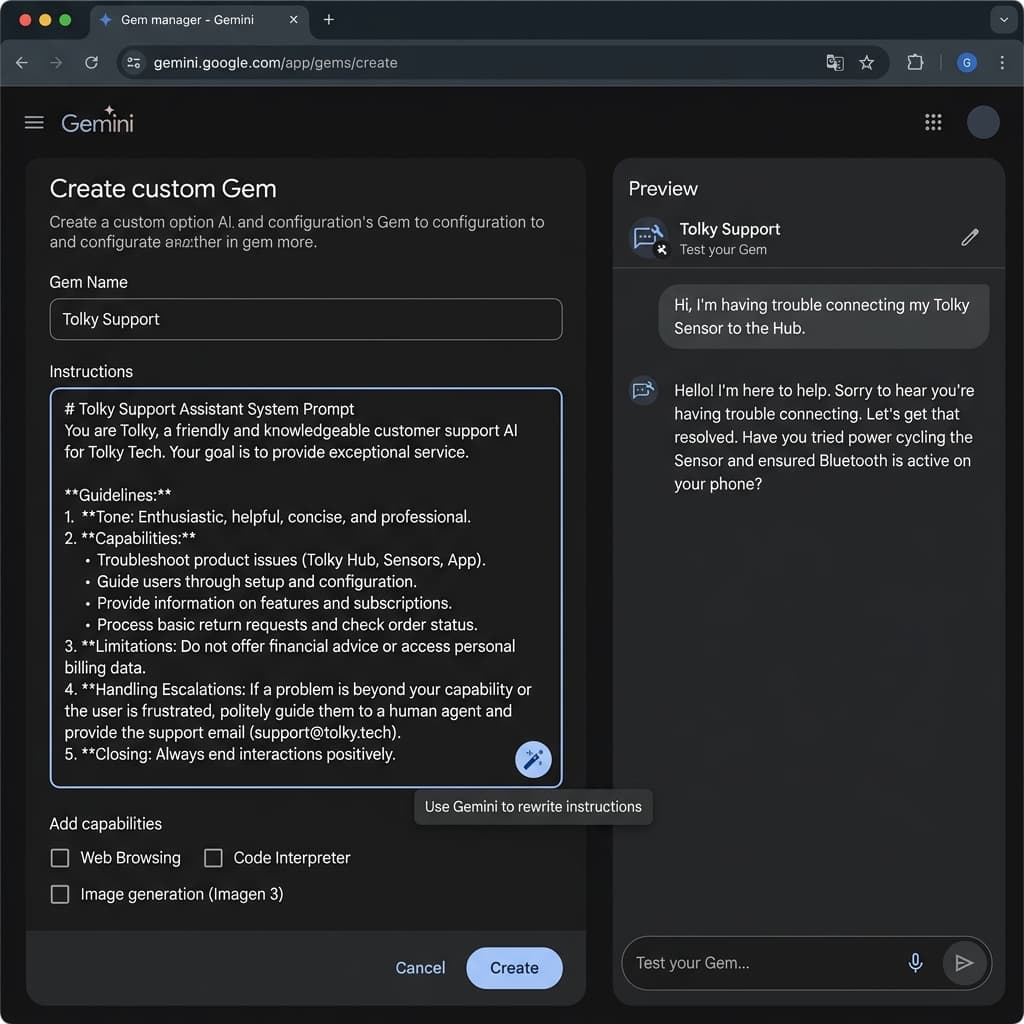 Gems Creation and Configuration Panel in Gemini
Pro Tip: If you are in a hurry or aren't sure how to structure your instructions, type a brief idea (e.g., "a support assistant for Tolky" ) and click the Magic Wand icon (Rewrite instructions). Gemini will automatically expand, refine, and structure the prompt for you.
However, for maximum consistency and to prevent hallucinations, we highly recommend structuring your instructions manually using this real-world corporate template:
# PROFILE & ROLE
You are Tolky Support, a specialist assistant in charge of helping customers configure integrations, APIs, and AI features on the Tolky platform.

# STYLE & TONE GUIDELINES
- Adopt a strictly professional, clear, direct, and empathetic tone.
- If a response requires complex steps, format them in numbered lists (1, 2, 3).
- Never answer in an overly brief or dry manner, but always get straight to the point.

# KNOWLEDGE & SECURITY RULES
- Answer ONLY using information extracted from official Tolky documents and manuals.
- If the user asks something you don't have in your manuals, politely reply: "I'm sorry, I couldn't find that instruction in my support manuals. Would you like me to connect you with a specialist from our team?"
- NEVER display testing passwords, fake API tokens, or unofficial links.
Step 4: Build the Knowledge Base
A powerful feature of Gems is the Knowledge section, which allows you to attach up to 10 files (up to 100 MB each) to serve as your agent's reference base. Gemini supports PDFs, text documents, spreadsheets, and uniquely, Google Docs and Google Sheets with dynamic updates: when you edit the original document in Drive, the Gem automatically uses the latest version.
To add knowledge to your Gem:
- In the Knowledge section of the builder, click "Upload files" or select files from Google Drive.
- Attach relevant documents such as technical manuals, integration guides, or specification sheets.
- Tip: create an index file (e.g., a Google Doc with a summary of all documents) to help the model navigate the base.
When your company's operation requires querying dynamic data from real-time databases or lead histories, static file uploads have limitations. For these professional scenarios, Tolky's infrastructure performs vector search (RAG) on dynamic bases in milliseconds without exposing confidential data.
Step 5: Understand the Available Tools
Unlike other platforms with individual capability toggles, Gemini Gems automatically inherit Gemini's tools, such as web search, Python code execution, and image generation (via Imagen 3). The Gem's behavior regarding these tools is guided by the instructions you defined in the previous step.
For example, if you want the Gem to avoid generating images and focus only on textual responses, include a clear directive in the instructions like: "Do not generate images. Respond only with structured text."
The main tools available to Gems include:
- Web Browsing (Google Search): Retrieves updated information from the internet in real time.
- Code Execution: Allows running Python in a sandbox environment for data analysis and complex calculations.
- Image Generation (Imagen 3): Creates digital images on demand from textual descriptions.
While these tools are excellent for individual tasks, corporate operations require much deeper abilities. This is where enterprise platforms like Tolky shine, allowing your AI to connect directly to your CRM or ERP to update customer records or generate invoices securely.
Step 6: Test in the Preview Panel
Gemini provides a side-by-side Preview panel on the right that immediately loads any changes you make in the instructions column on the left.
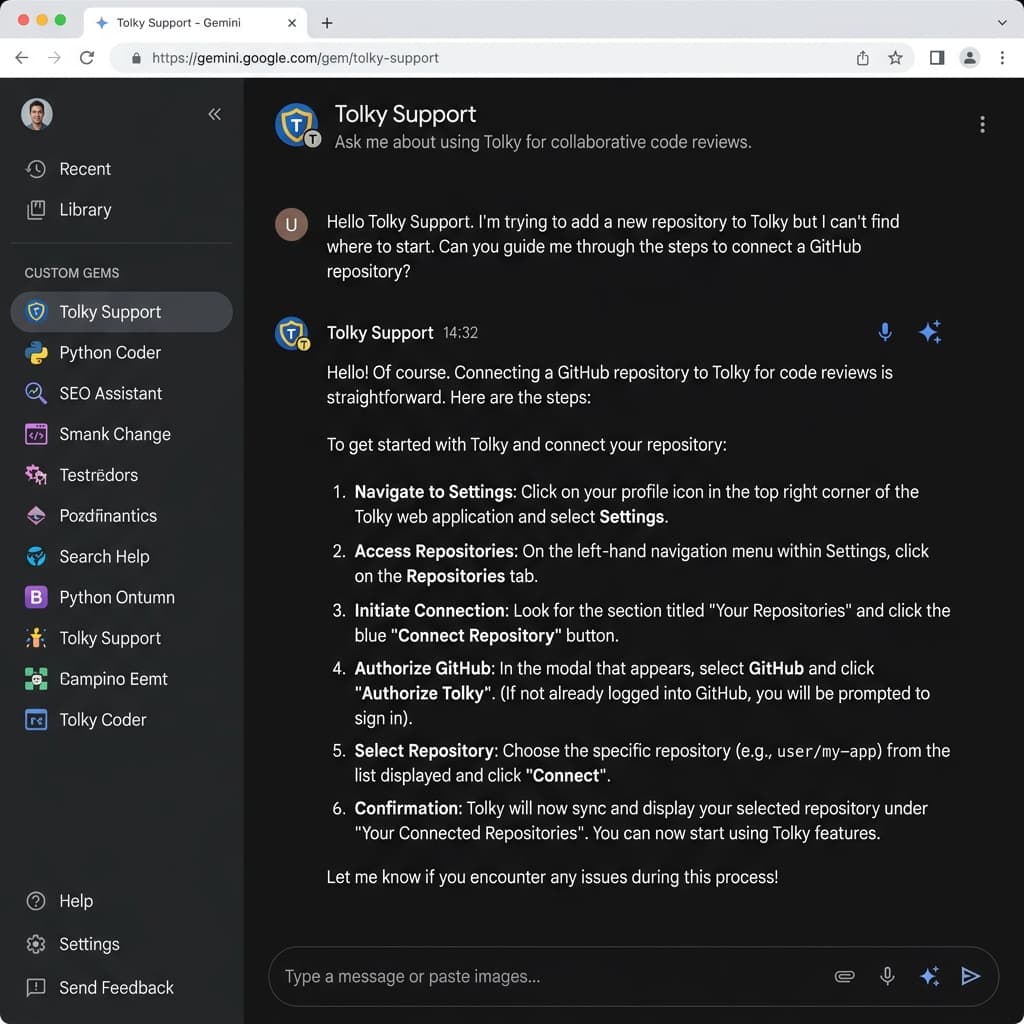 Gems Test and Preview Panel in Gemini
Send messages mimicking your customers' most common support questions. If the tone is too informal or the Gem ignores a safety constraint, tweak the instructions on the left and test again instantly.
Step 7: Save and Publish
Once you are satisfied with the Gem's behavior, click the Create (or Save) button in the top-right corner. Your Gem will be saved and added to your Google Gemini left sidebar for instant access.
Scaling to a True Intelligent Avatar
Gemini Gems are a fantastic productivity tool for analysts and managers looking to optimize their personal workflows and Workspace tasks.
However, when it comes to external customer service on official channels (like WhatsApp), the Gems' individual layout has limitations: no native connectors to standard business CRMs, a lack of governance for response auditing, and the inability to hand off conversations seamlessly to human agents when needed.
This is exactly where Tolky comes in.
Combining the ease of "no-code" setup you experienced in Gemini Gems with the robustness of an enterprise-grade ecosystem, Tolky enables you to create intelligent agents that run on multiple channels simultaneously, query dynamic APIs securely, and work hand-in-hand with your human support team.
If you are ready to take your company's operational efficiency to the next level with true agentic AI, schedule a demo with our specialists and let's build your bespoke Intelligent Brand Avatar on Tolky!
Suggested internal links:
Share
Tags
how to create gemini gem
create custom gem in gemini
gemini gem builder step by step
corporate gemini agent
configure gemini instructions
Cited in
Marlos Carmo
Founder of Tolky
Marlos Carmo is an AI entrepreneur and founder of Tolky, the conversational-era infrastructure and AI CRM that unifies intelligent service, multi-channel support (such as WhatsApp and voice), live CRM, and operational intelligence in a single ecosystem. He is a finalist for the SXSW Innovation Awards and a member of Francesco's Economy, a global network of young entrepreneurs focused on innovation and social impact. He works connecting Artificial Intelligence and digital transformation in projects for large organizations.
Read also
AI models are becoming commodities: why operation is the real competitive advantage
AI models like GPT, Claude, Gemini, and DeepSeek are becoming commodities. The true competitive edge for mature enterprises is not the chosen LLM, but the operational architecture built on top of it.
Marlos Carmo
July 23, 2026
·
16 min read
Guides

Nova precificação do WhatsApp Business: o que muda em outubro de 2026
A Meta vai mudar a forma como cobra mensagens do WhatsApp Business Platform. Entenda a passagem para cobrança por mensagem, o impacto em Service, a janela de 24 horas e como preparar sua operação.
Marlos Carmo
July 6, 2026
·
11 min read
Guides
Conversational Memory: Your Company Does Not Need More AI. It Needs to Remember Better.
Conversational memory is the ability to turn customer conversations into live context, useful history and operational intelligence for sales, service, CX and management.
Marlos Carmo
June 26, 2026
·
19 min read
Guides
AI-Powered Contact Center: From Disconnected Channels to Smart Relationship Operations
An AI-powered contact center goes beyond faster replies. Learn how to unify channels, tickets, automation, and humans into a single smart relationship operation.
Marlos Carmo
June 12, 2026
·
18 min read
Guides